Learn how to show the right checklist to the right users using properties, events, and page rules
Targeting ensures users see the most relevant checklist based on their profile, behavior, and context.
Targeting overview
Properties: user or account attributes (plan, role, signup date)
Events: actions taken in your product (invited teammate, exported data)
Context: page URL, device type, environment
Add targeting rules
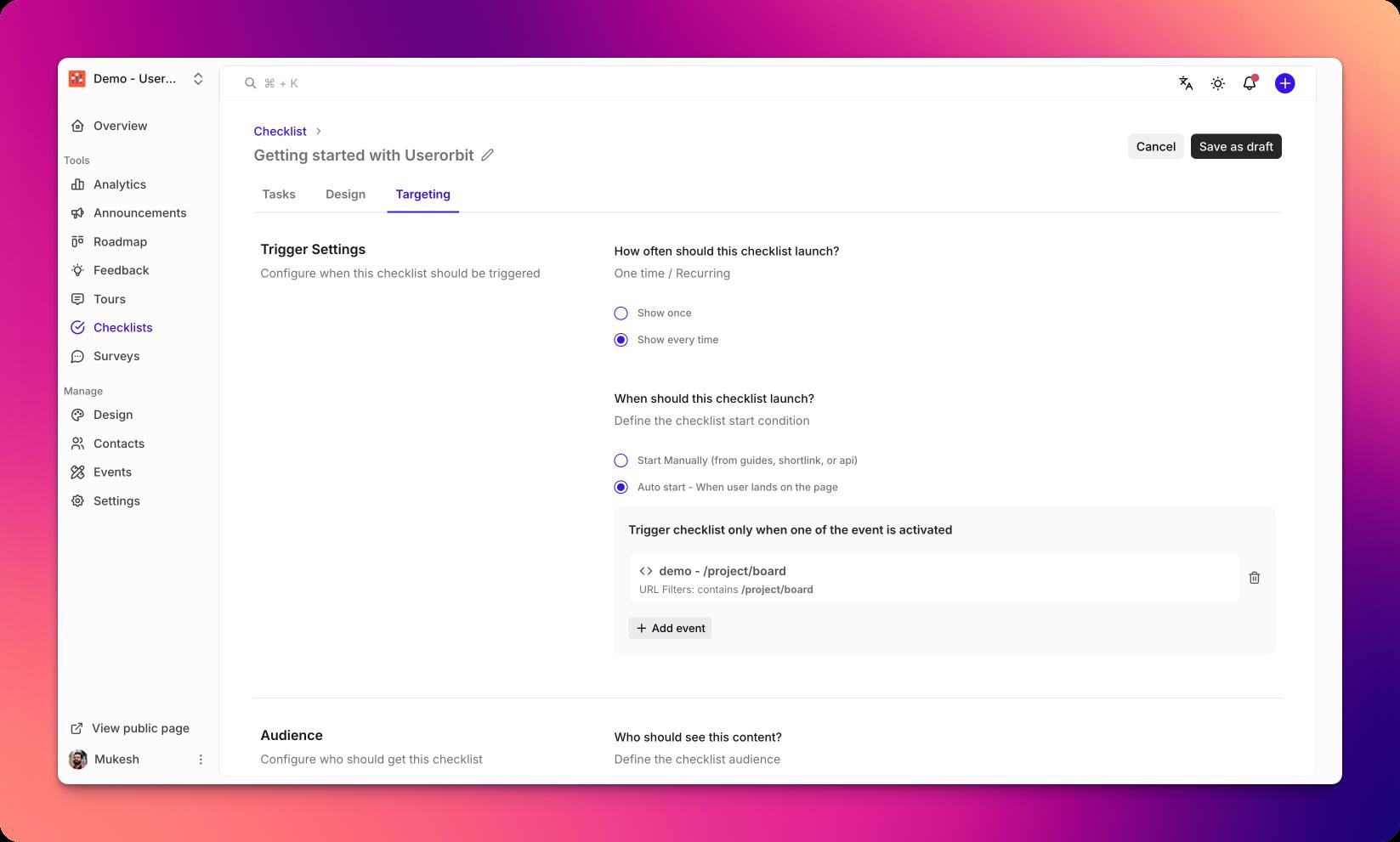
Open a checklist and go to the Targeting tab.
Click Add rule.
Choose a rule type:
Property rule (e.g.,
plan is Pro)Event rule (e.g.,
has completed event Invite Teammate)Page rule (e.g.,
url contains /settings)
Combine multiple rules with AND/OR logic.
Save to activate the targeting set.
Prioritization and conflicts
Higher priority checklists will display first when multiple match
Limit one active checklist per page for clarity
Use exclusions to prevent overlap with other experiences
Testing targeting
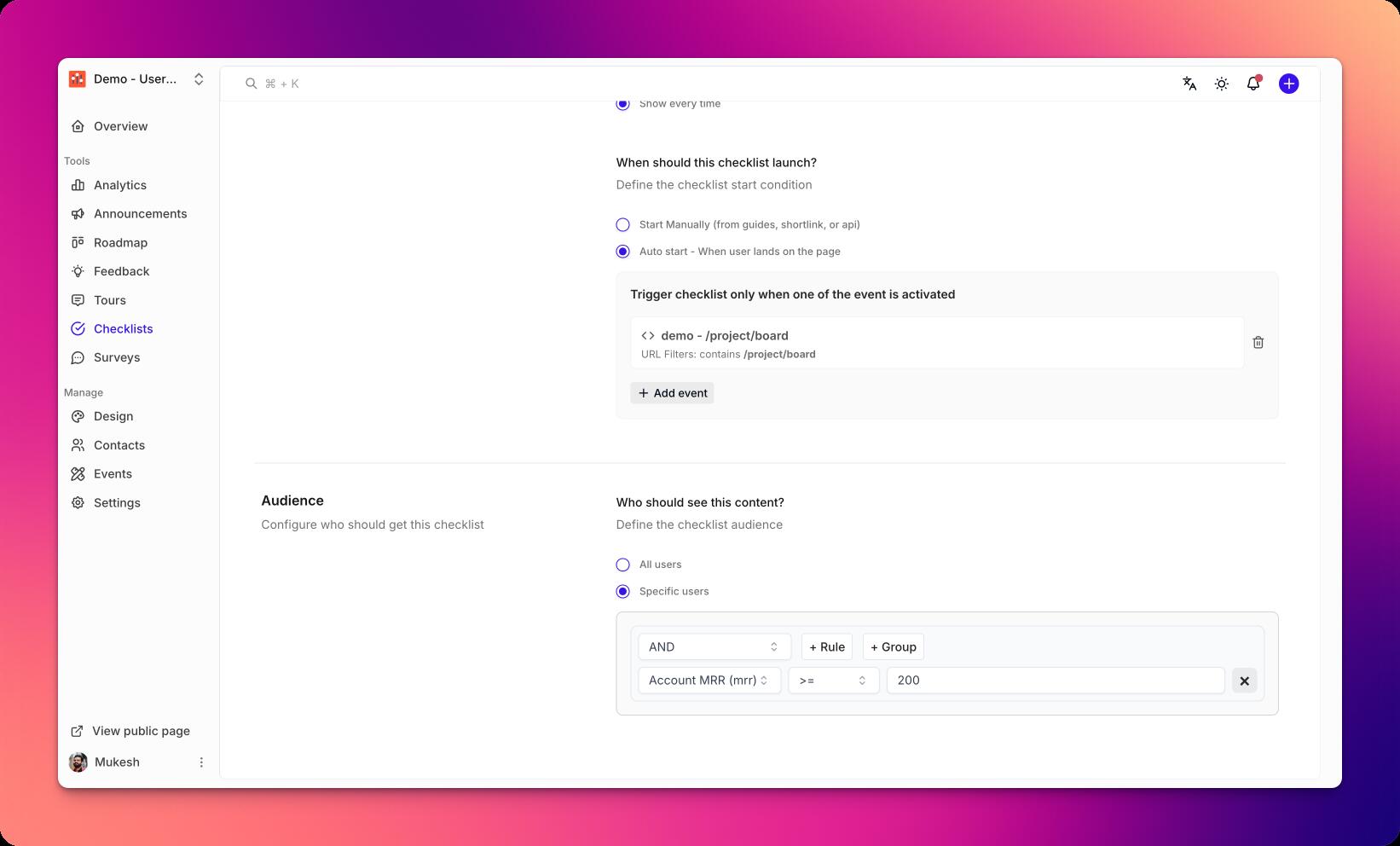
Use Preview as user to simulate properties and events.
Navigate to target pages to validate URL rules.
Check the debug panel for matched/blocked rules.
Best practices
Start broad, then refine as you learn
Prefer durable properties over transient events
Keep targeting logic readable and documented
Review targeting when product surfaces change
Troubleshooting
Checklist not showing: ensure at least one rule matches and the checklist is published
Wrong audience: review AND/OR combinations and exclusions
Flaky matches: check event ingestion timing and property syncs